
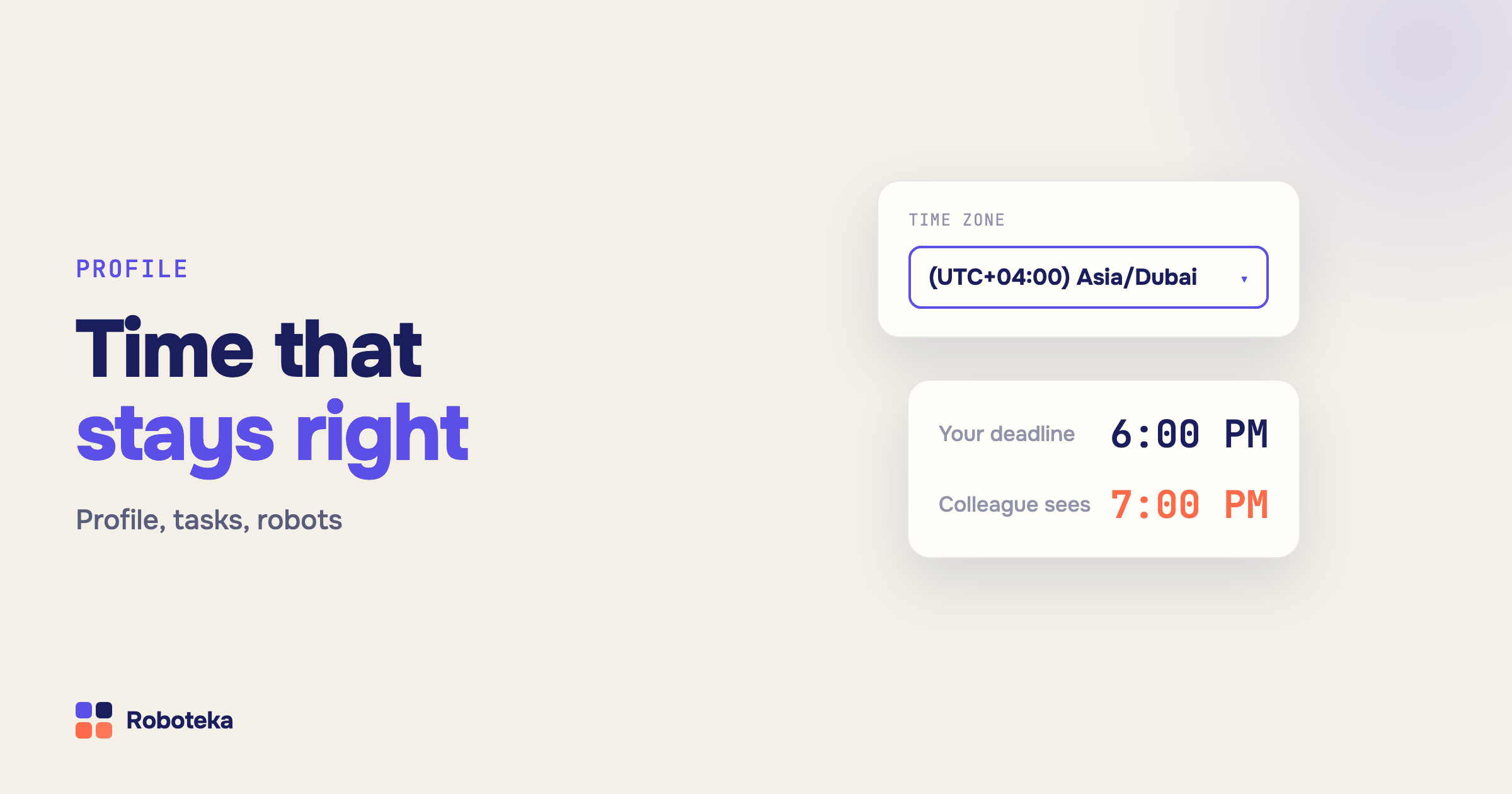
In Bitrix24 (Alaio), the time zone is not a portal-wide setting. Each employee has their own. That explains most of the complaints: a task is due at 6 PM for one person and at 8 PM for a colleague; the calendar was right in the morning, and after the laptop woke from sleep every time shifted by an hour; a robot booked a meeting at the wrong time. Below: where the time zone is changed, where it comes from when nobody picked one, why it "drifts", and which time zone robots and workflows use when they calculate dates.
How do I change my time zone in Bitrix24?
In your profile: avatar in the top right corner → profile → Edit → the Time zone field. The field has two parts. The first is the detection mode, with three options: "(default)" (whatever the portal is set to), "Yes, use browser settings" and "No, select from list". The second is the zone itself, which only matters in manual mode. If you want Bitrix24 time to stop depending on your computer, pick manual mode and your city. A portal administrator can edit a colleague's profile the same way, which is the fix for an employee who never opens their settings. If there is no Time zone field in the profile at all, time zones are switched off on the portal and everyone sees server time.
Why is the time wrong in Bitrix24?
Almost always because of automatic mode. In that mode Bitrix24 does not store your zone. On every page load it asks the browser which zone the computer is in and keeps the answer in a cookie for a year. The browser, in turn, takes the zone from the operating system. So portal time moves with the computer: a laptop picked up a different zone after sleep or a trip, the system has the wrong city set by hand, or an office machine runs on UTC. Nothing is lost on the portal itself. Tasks, deals and events store an absolute moment in time, and only the way it is displayed to you shifts. There are two fixes: correct the zone in the operating system, or switch the profile to manual mode so the computer's settings no longer matter. One more common case is manual mode with an empty selection: then the portal default applies, and if that is empty too, server time.
Can I set a default time zone for all employees?
In the self-hosted edition, yes: the main module settings in the admin panel switch time zones on, choose the default zone and decide whether browser detection is the default mode. Everyone whose profile says "(default)" gets those values. The cloud edition has no admin panel, so the working route is the time zone field in each employee's profile. For a distributed team that is the right model anyway: a sales rep in Berlin and an accountant in London should have different zones, and then each of them sees deadlines in local time.
Why does a colleague see a different time on the same task?
Because that is how it is designed. A task deadline, a meeting start and a call time are stored as one moment and shown to each person in their own zone. The creator in London sets 6 PM, the assignee in Berlin sees 7 PM, and it is the same moment. The trouble starts when someone's zone is set wrong: they see everyone else's deadlines shifted and miss them. The first thing to check on an "I see a different time" complaint is the Time zone field in both profiles. For a colleague in automatic mode, the system uses the zone detected at their last visit, so if they have not logged in from a correctly configured computer for a while, their portal time can be stale.
Which time zone do robots and workflows use?
This is where automations break most often. A robot runs on the server, not in your browser, and "now" comes in two flavors. In the workflow designer, {=System:Now} is server time, and {=System:NowLocal} is time in the zone of the user the step runs on behalf of. For a workflow started by an event, that is not necessarily you. If you need a date in a specific person's zone, say so explicitly: touserdate({=Document:ASSIGNED_BY_ID}) in a calculation returns the current time in the responsible person's zone, and getuserdateoffset({=Document:ASSIGNED_BY_ID}) returns their offset in seconds, which you can add to any date. That settles the classic complaint "the robot sets the task for 3 PM and the employee sees 5 PM".
App robots receive a date from the workflow as a string without a zone, exactly as it is shown in the designer. The Create a calendar event robot passes it to the calendar as is, and the calendar applies the zone of the user the app works on behalf of, usually the administrator who installed it. So if events land shifted, check that administrator's profile. A date with an explicit offset, such as 2026-10-16T10:00:00+02:00, is passed with its offset and does not shift.
How do I calculate dates without time zone surprises?
The rule is simple: calculate in one zone and convert to the target zone only at the end. Difference between two dates returns the difference in days, hours, minutes or whole months; if both dates come from fields of the same record, the time zone does not affect the result. Nearest date by condition finds the next Friday, the first day of the month or the next weekday. Date formatting turns a date into "October 16, 2026" for an email or a document. It does not convert the zone, it formats the date it received, so do any conversion before it. More date techniques are in the article on dates in workflows, and pauses and waiting are covered in the article on delays in automation.
What about the client's time zone?
That is a different problem. An employee's zone lives in their profile, but Bitrix24 knows nothing about a client's zone. You can detect it from the phone number and show it right on the deal card with the Client local time field, together with the local time and whether it is business hours for the client. Setup and how to use it in call lists are in the article on the client's time zone.
Summary
The time zone in Bitrix24 is a profile setting, not a portal setting. If you want the time to stop drifting, use manual mode and your city in the profile; in automatic mode the portal mirrors the computer's zone. In robots and workflows, say whose zone you mean: touserdate() and getuserdateoffset() instead of {=System:Now}. The date robots — Difference between two dates, Nearest date by condition, Date formatting, Create a calendar event — are free in the Roboteka catalog. Need a robot that converts a date to a specific employee's or client's zone and can't find one? Describe the task, and we will build it for free and add it to the shared library.